
Workspaces and roles
A workspace holds your stories, brands, shops and team. Switch between workspaces, invite people, and see what each role can do.
A workspace is a separate place with its own stories, shops, contacts, members and plan. You start with your own workspace. You can make more, and other people can invite you to theirs.
Switch workspaces
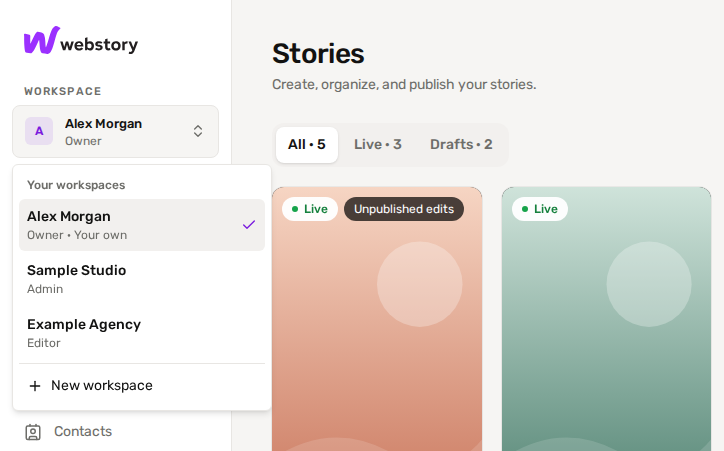
The workspace switcher sits at the top of the sidebar, under Workspace.
- With one workspace, it shows a + button. Point at it and it says New workspace.
- With more than one, it shows the current workspace and your role in it. Open it to see Your workspaces and pick another one.
To make a workspace, choose New workspace, give it a name and choose Create workspace. You're its Owner, and your own workspace stays as it is.
Roles
Everyone in a workspace has one role. The invite form shows what each one means:
| Role | What they can do |
|---|---|
| Owner | Everything, including the plan, the payout bank account and deleting the workspace. |
| Admin | Runs the workspace day to day: stories, shops, contacts and members. No billing or bank details. |
| Editor | Builds and publishes stories. No orders, contacts or money. |
| Shop manager | Runs the shop: products, stock, orders, refunds and shipping. |
| Viewer | Looks at stories, shops and numbers. Changes nothing, and sees no customer details. |
Shop managers and Viewers can be limited to Only these shops instead of All shops. A member limited to chosen shops sees those shops and nothing else.
Invite someone
Owners and Admins can invite people.
- Open Settings → Members.
- Under Invite someone, enter their Email and choose a Role.
- Choose Send invitation.
They get an email and choose Accept invitation. Until then, the invitation is listed with Resend and Revoke. To change someone's role later, use Change role on their row.
How many people a workspace can hold depends on its plan.
See who did what
Owners and Admins can open Settings → Activity: who did what in this workspace, such as invitations, role changes, publishing and payment changes, newest first. It's kept for 2 years. Choose Agents to see only what AI agents did, with an Undo on their changes to drafts: see Changes by agents, and Undo.
Using an AI agent
An agent works for one person in one workspace, with that person's role. It never gets more rights than they have, and a change of role applies to the agent straight away. To use an agent in two workspaces, connect it twice. See Connect an agent and Roles and what a token can do.