
Publishing
Preview your draft, publish it, update it, take it offline, and how publishing works when an AI agent is involved.
Everything you change in a story saves to its draft as you go. Viewers don't see the draft. Publishing puts it live at the story's address, and every later publish replaces the live version with your current draft.
Preview first
When the story has changes that aren't live yet, Preview in the story's top bar opens a private preview of your saved draft. The preview works for one hour. Once the story is live, View live opens the live version.
Before publishing, Check story shows anything that may not work for viewers on some phones. See Stories.
Publish
- Choose Publish in the story's top bar. When the story is already live and you've changed it, the button says Publish changes.
- Publishing runs in the background. You can keep working.
- When it's done, you get a notification that the story is live, with Share it. That opens the story's link with Copy, and other ways to share it.
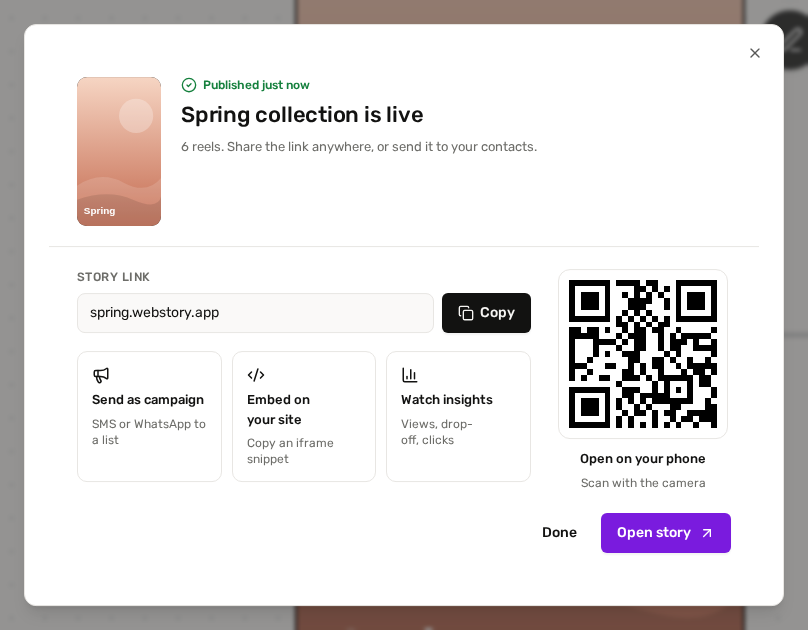
If something on the story couldn't be published, such as a button for a product that isn't for sale, the same dialog tells you what was left out.
Owners, Admins and Editors can publish. Viewers and Shop managers can't.
Your plan's live stories
Each plan includes a number of live stories, listed on the pricing page. If you're at the limit when you publish, Webstory says so and offers a bigger plan, or a link to unpublish another story instead.
Take a story offline
Open the story's settings with the gear, find Take this story offline and choose Take offline. Visitors then see a "This Webstory is offline" page until you publish again. Your draft stays as it is.
When an AI agent changed the draft
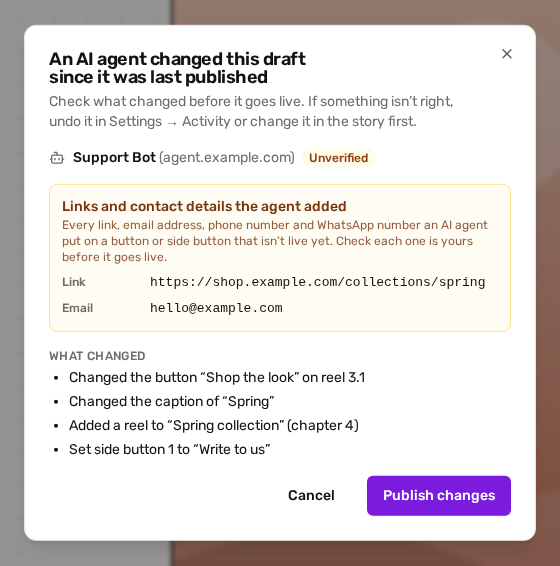
If an AI agent changed the story's draft since it was last published, choosing Publish shows you what it changed first:
- which agents changed it, with their web addresses, marked Unverified unless Webstory has checked who makes them;
- Links and contact details the agent added: every link, email address, phone number and WhatsApp number an agent put on a button or side button that isn't live yet, written out in full. Check each one is yours;
- What changed, in a few words each.
Choose Publish (or Publish changes) to go ahead, or Cancel. If something isn't right, change it in the story first, or ask an Owner or Admin to undo it in Settings → Activity. See Changes by agents, and Undo.
The dialog lists links and contact details on buttons only. Words an agent changed in a caption or a text appear as "changed the caption of …", and pictures and videos aren't shown, so look through the story with Preview too.
Using an AI agent
Agents can't publish. A person checks the draft and publishes it in the dashboard.
An agent can make a preview link to your draft with create_preview and send it to you to check. Anyone who has the link can open the draft for an hour, and any agent that can read your stories can make one.