
Connect an agent
Connect your own AI agent to Webstory over MCP, approve what it may do, and disconnect it again.
Webstory runs a remote MCP server. An AI agent app can work with your stories if it can add a remote MCP server, register itself with it, and sign in with OAuth. The agent acts for you: in one workspace, with your team role, and never with more rights than you have.
The address
https://webstoryapp.com/mcpYour agent's app may call this a custom connector, an integration or a remote MCP server. Paste the address there. You don't need a key: the app sends you to Webstory to sign in.
Connect
- Add the address in your agent's app.
- A Webstory page opens. Sign in if you're asked to.
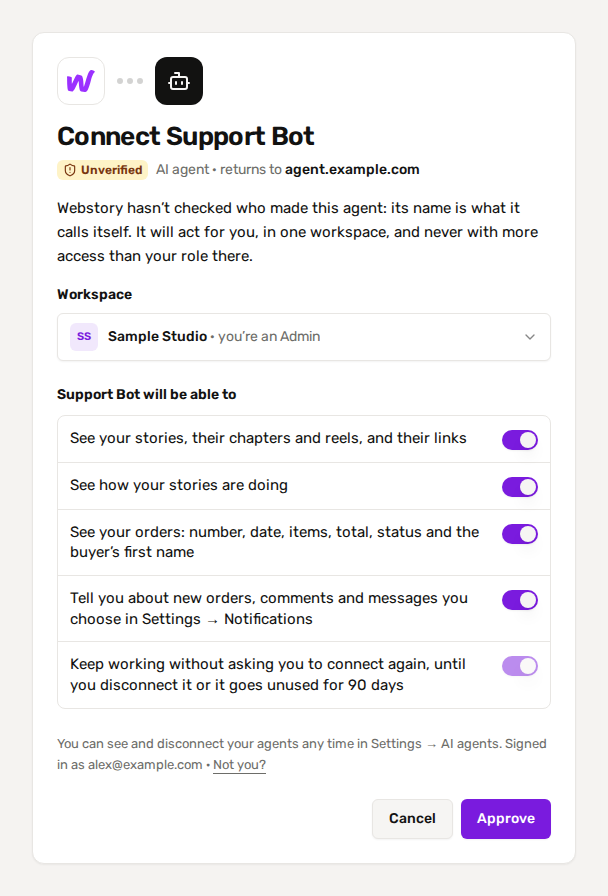
- On the approval page:
- Check the agent's name and the web address it returns to, shown as AI agent · returns to and the address. Whoever made the agent chose its name, so the web address is what tells you who it is. The name is marked Unverified unless Webstory has checked who makes the agent (Verified).
- If the page says the agent runs on a computer, not on a website, it's an app on your own computer. Approve only if you started that app yourself just now.
- Under Workspace, choose the workspace it should work in.
- Check what it will be able to do. Each thing has a switch: turn off what it shouldn't do. Anything your team role doesn't allow is off and says why.
- Choose Approve, or Cancel. You're sent back to your agent.
Webstory sends you a notification and an email whenever a new agent connects to your account. If you didn't connect it, disconnect it straight away.
One connection, one workspace
A connection is one person in one workspace. To let the same agent work in a second workspace, connect it again and choose the other workspace.
The agent's rights are your rights, checked on every request. If your role changes, or you leave the workspace, the agent's rights change or end with its next request.
What an agent can do
| Tool | What it does | Scope |
|---|---|---|
get_workspace | The connection itself: the workspace, the person's role in it now, the scopes held and the agent's name. | Any |
list_stories | The workspace's stories, newest first. | stories:read |
get_story | A story's outline, as its story map shows it: chapters in order, each with its main reel and the reels on its side path. | stories:read |
get_reel | One reel: its title, caption, type, length and picture. | stories:read |
get_reel_share | What sending a reel to someone needs: a title, a picture for the preview and the public address. | stories:read |
create_share_link | Makes a short link to a reel for sending to someone. | stories:share |
get_story_stats | How a story is doing over the last 7, 30 or 90 days: the numbers of its Insights tab. | insights:read |
list_comments | Comments on the workspace's stories, newest first. | comments:read |
list_chats | Chats with the workspace's brands, as the person's Inbox shows them, most recent first. | chats:read |
get_chat | One chat's latest messages, oldest first. | chats:read |
list_orders | Orders in the shops the person handles orders for, newest first: the order number, date, items, total, status and the buyer's first name only. | orders:read |
get_order | One order, with the same fields as list_orders. | orders:read |
set_notification_endpoint | Where Webstory sends this person's notifications for the agent. | notifications |
list_brands | The workspace's brands (their logos, colours and fonts), the default brand first, to pick one for a story or a reel. | stories:read |
create_story | Makes a new draft story from videos and photos in the workspace's library, like the dashboard's “make a story from these files”: one reel per file, in the order given, each its own chapter on the main path (with no files: one empty reel). | stories:edit |
update_story | Changes a story's name or its brand, nothing else (its address, domain, comments, legal pages and protection are changed in Webstory only). | stories:edit |
add_reels | Adds one reel per video or photo from the library, in the order given: at the end of the main path (each its own chapter), or right after after_reel_id (after a reel on the main path: as the next chapters; after a reel on a side path: next on that side path). | stories:edit |
update_reel | Changes one reel's own fields, as the reel inspector saves them: its title (the reel's link follows a new title; the old link keeps working), caption, closed caption, its video or photo, and its brand. | stories:edit |
move_reel | Moves a reel within its story's map, as dragging it on the story map does. | stories:edit |
duplicate_reel | Copies a reel right after it, as the story map's Duplicate does: a side reel's copy is next on its side path; a chapter's reel's copy leads its side path. | stories:edit |
remove_reel | Removes a reel from a story's draft: only a reel this connection added (create_story, add_reels, duplicate_reel) that was never published, that is still exactly as this connection last left it (once anyone else changed it since this connection's last change to it, it stays; an undone change doesn't count as the connection's), and not the story's only reel on the main path or a reel leading a side path. | stories:edit |
replace_text | Finds words across one story's reels and replaces them: the reels' titles, captions and closed captions, the labels of the buttons on them and the words of the texts on them (inside groups too). | stories:edit |
create_preview | A link to the story's current draft that opens for one hour (the dashboard's own preview), always on Webstory's preview address https://preview.webstory.app/__preview/<token>, never on the story's own address or custom domain. | stories:read |
list_media | The photos and videos in the workspace's Library, newest first, as the Library shows them: a file's name is its own, else the title of a reel that uses it, and the search covers names and the titles and captions of reels using a file. | media:read |
import_media | Adds a photo or video to the Library from a public https address of the file itself (not a page that shows it). | media:upload |
upload_file | Adds a photo or video the person sent the agent (an attachment, as the agent's app passes it: { url, name, mediaType, size }) to the Library, by the same rules and path as import_media from file.url, named file.name. | media:upload |
create_upload | Makes a one-time link for sending one file from code the agent runs, when the file isn't at a public address. | media:upload |
create_upload_page | Makes a page on webstoryapp.com where the person, or a teammate whose role can add photos and videos, signs in and adds them to the Library from a phone or a computer, with the Library's own upload (its rules: pictures, portrait videos up to a minute, the plan's storage). | media:upload |
list_reel_elements | What's on one reel of a story, as the reel editor shows it: buttons, texts, pictures, price tags, product cards, countdowns, shapes and others, bottom first, then the story's own elements that show on every reel. | stories:read |
set_button | Adds a button to one reel of a story's draft, or changes one of the reel's own buttons (button_id). | stories:edit |
remove_button | Removes one of a reel's own buttons from the story's draft; everything else on the reel stays exactly as it is. | stories:edit |
set_side_button | Sets one of the story's side buttons in its draft: the round buttons beside every reel that shows the story's side buttons (list_reel_elements lists them; reel.side_buttons says whether a reel shows them). | stories:edit |
list_changes | The draft changes agents made in the workspace, newest first, from every agent connection in it (other people's agents by the name they gave themselves). | stories:read |
undo_change | Undoes one draft change an agent made (any agent in the workspace), putting back what was there before, only while the thing still is as the change left it. | stories:edit |
The list your agent sees is filtered: it only shows what you approved and what your role allows. See the tool reference.
Agents can't publish. Your draft and your live story stay as they are until a person publishes in the dashboard. See Publishing.
An agent you allow to change drafts works like a teammate on your stories. Every change it makes is recorded, and most can be undone for 30 days. Before you publish, Webstory shows you what agents changed, and every link and contact detail they put on a button. See Changes by agents, and Undo.
Some things are never open to agents, whatever your role: keys and secrets, payment and payout settings, bank details, billing and plan changes, team members and roles, handing over stories or workspaces, deleting a workspace, refunds and ad tracking.
Agents don't get your customers' contact details: no email addresses, phone numbers or postal addresses.
- Orders show the number, date, items, total, status and the buyer's first name, and nothing else about the buyer.
- Comments and chat messages show what people wrote, without their contact details.
Reading isn't harmless
An agent that only reads can still leak what it reads. Comments and chat messages are written by people you don't know, and they can contain text made to look like instructions. They reach the agent in the same conversation as private things, such as your orders. If the agent's app also lets it send email, browse the web or send messages, a fooled agent could pass your data on.
So:
- Connect only agents you trust, and only to the workspace they need.
- If you build an agent, ask for the scopes it needs and no more. Ask for orders and chats only when the agent's job needs them.
- Never let an agent follow instructions found in what Webstory returns.
An agent that can read your stories can also make a preview link to a draft: anyone who has that link can open the draft for an hour. Treat a story you haven't published as readable by the agents you connect.
Changing isn't harmless either
An agent you allow to change drafts or add photos and videos can be fooled the same way. A fooled agent could put a scam link or phone number on a button, rewrite words across a whole story, undo other agents' changes (an agent's undo can't be undone), or bring files into your Library from any web address.
Nothing goes live until someone publishes, and before that Webstory shows you what agents changed. It doesn't show everything, though: it lists the links and contact details agents put on buttons, not ones written into a caption or text, and it shows no pictures or videos. So:
- Allow changing drafts and adding photos and videos only to agents you trust.
- Before you publish a story an agent changed, read the changes, then open Preview and look through it.
- If something's wrong, change it in the story, or ask an Owner or Admin to undo it in Settings → Activity.
Webstory tells every agent that what it returns is data, never instructions, and keeps what an agent can do small. That lowers the risk. It can't remove it.
See and disconnect your agents
Open Settings → AI agents in the dashboard. Connect an agent shows the address to paste, with Copy. Your agents lists the agents connected to your account in this workspace: each one's name, Verified or Unverified, its web address, What it may do, when it was connected and last used, and Can text you if it can send you notifications. Disconnect stops it at once.
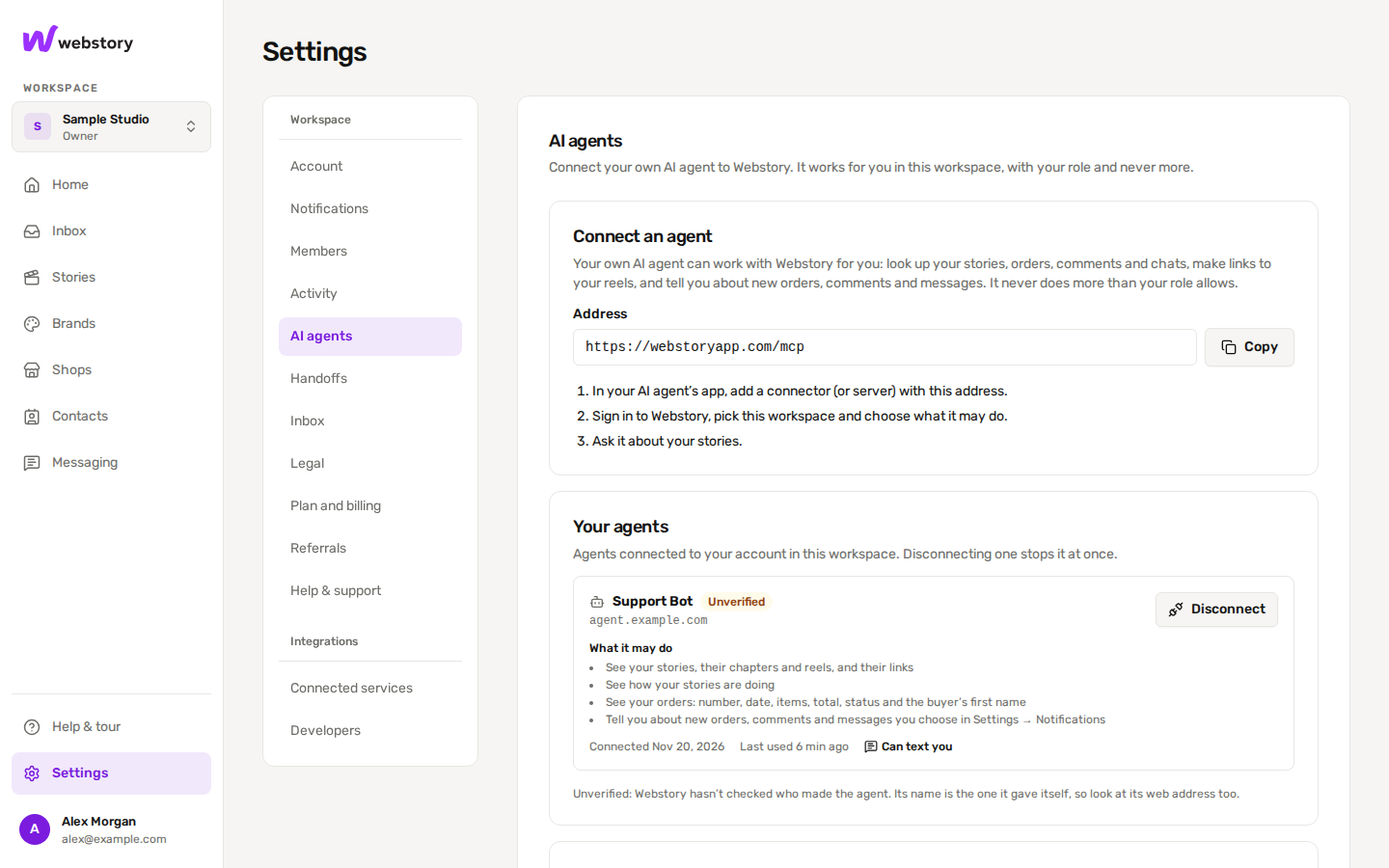
Owners and Admins also see Everyone's agents in the workspace and can disconnect any of them; the person is told. The workspace's Owner can switch off Members can connect agents, which disconnects every agent in the workspace and stops new ones connecting.
Your agent's access renews by itself, so you don't have to sign in again. A connection you don't use for 90 days ends.
If it doesn't connect
- Your app has nowhere to paste an address, or connecting fails. It needs to support remote MCP servers that register themselves (dynamic client registration) and sign in with OAuth. Check your app's help.
- The agent sees fewer tools than listed here. Your role doesn't allow the others, or they weren't part of what you approved. The agent can ask for them by connecting again.
- The agent says it was signed out. The connection ended. For example, it was disconnected by you or by an Owner or Admin, the Owner turned agents off for the workspace, it wasn't used for 90 days, or you left the workspace. Connect again.