
Reels
A reel is one screen of a story, made of a video, an image or a design. Add reels, name and caption them, add subtitles, and edit them in the Reel Editor.
A reel is one full screen of a story. People see one reel at a time and swipe to the next. Each reel has a background and whatever you put on it: buttons, text, price tags and more.
Kinds of reel
- Video: a short video that plays as the reel. Best upright, like a phone screen.
- Image: a photo or picture.
- Design: a reel you lay out yourself with text, pictures and shapes. When you choose what a new reel holds, it's called Canvas.
Add a reel
On the story map, use the + buttons to add a reel to a chapter or start a new chapter (see Chapters). An empty reel offers Upload video or Image or design. You can also use the Library button at the bottom right of the Reels tab to add files you've uploaded before.
Name, caption and subtitles
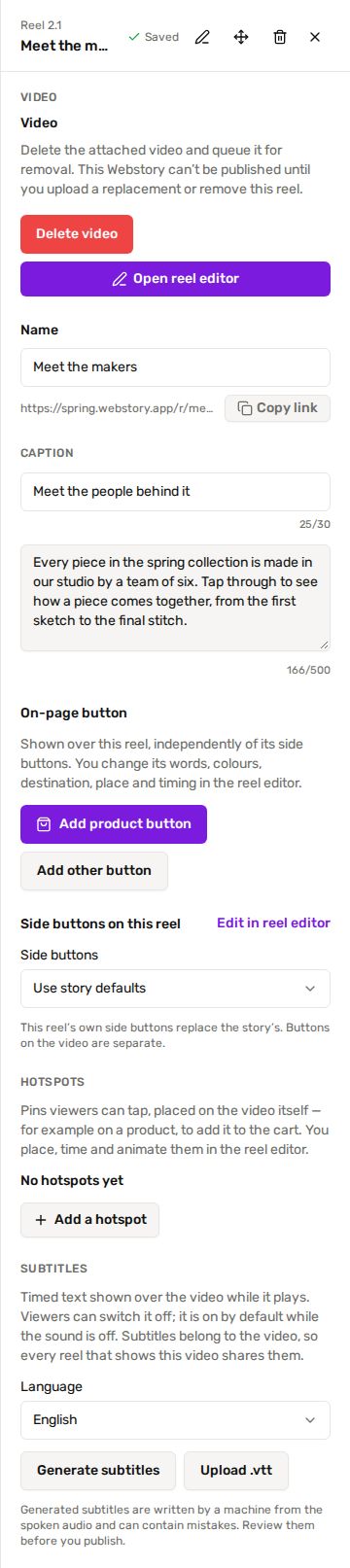
Select a reel and choose Edit reel to open its panel.
- Name: what you and your team call it. Once a reel has a name, or the story is published, it gets a link of its own that you can share.
- Caption: a short teaser people see first, and a full caption they can expand.
- Subtitles (video reels): choose a language and Generate subtitles, or Upload .vtt with your own. Check the text, then Save subtitles.
The Reel Editor
Choose Open reel editor, or the pencil on a reel, to edit what's on it.
- On the left, Add has everything you can put on a reel: buttons, price tags, text, images, shapes, hotspots, product cards and countdowns. Choose This reel or Every reel to add something to one reel or the whole story. Layers lists what's already there.
- In the middle is the reel itself. Select something to move or resize it.
- On the right are the settings for what you selected, such as its content, position, timing, animation and style.
- Checks warns about anything that may not work well on some phones, such as a button too small to tap, or something hidden under the caption, the side buttons or the other controls viewers see.
- Preview plays the reel as viewers will see it. Done takes you back to the story.
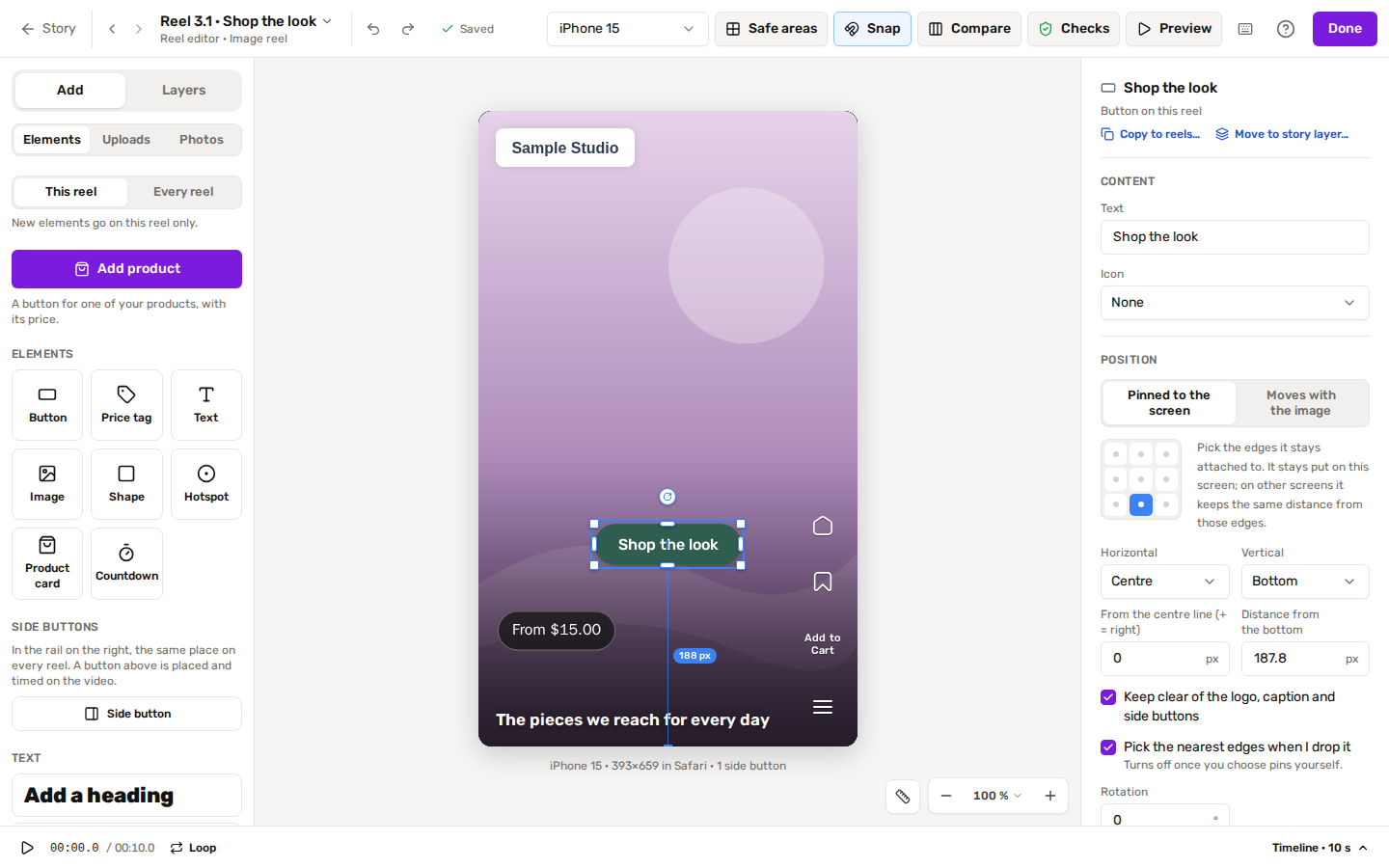
Changes save to your draft as you go. Viewers see them after you publish.
Using an AI agent
get_reel tells an agent about one reel: its title, caption and kind, a video's length, a picture of it, and its public address while the story is live. list_reel_elements lists what's on it, as the Reel Editor shows it: buttons, texts, pictures, price tags and the rest, each in a few plain facts.
With permission to change drafts, an agent can:
- add reels from the Library with
add_reels, at the end of the story or after a reel you name; - change a reel's title, caption, closed caption, video or photo, or brand with
update_reel; - move a reel with
move_reel, as dragging it on the story map does, or copy it withduplicate_reel; - remove a reel with
remove_reel, but only one it added itself that was never published and nobody else has changed since; - find and replace words across a story's titles, captions, closed captions, button labels and texts with
replace_text. By default it only lists what it would change; it changes words only when asked to.
Agents can't change designs made in the old canvas editor until someone opens and changes them once in the Reel Editor, or anything the team locked in the editor. Every change goes to the draft and can be undone: see Changes by agents, and Undo.