Photos and videos (the Library)
The Library holds your workspace's photos and videos. Upload once, then use them in any story, and see how agents add files to it.
The Library is where your workspace keeps its photos and videos. Upload clips and pictures once, then add them to any story.
Open the Library
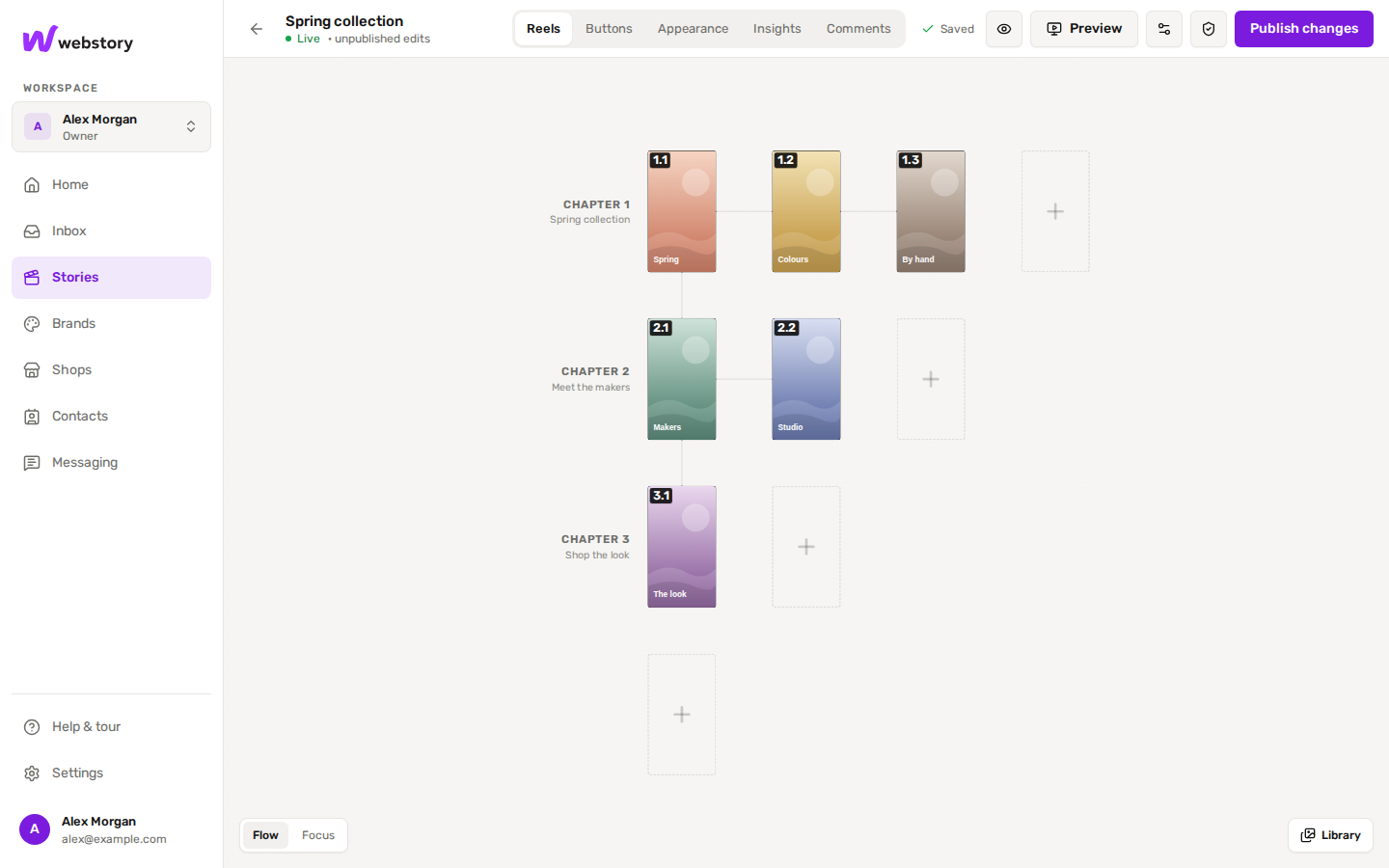
In a story's Reels tab, choose the Library button at the bottom right. In the Reel Editor, your pictures are under Add, in Uploads.
- All media shows everything. Each story also has its own folder, named after the story; renaming the folder stops it following the story's name. You can make more folders with New folder.
- Choose Upload to add files. They go to the folder you're looking at, or to the story's folder from All media. The Library takes pictures and upright videos up to a minute long, within your plan's storage.
- Used in shows which stories use a file.
To put a file on a reel, drag it onto the story map, or choose where it goes, such as the next chapter or the end of the story. See Reels.
Deleting files
A file a live story still shows stays on that story until you publish it again. Then the file is removed.
Using an AI agent
An agent can look through the Library with list_media and put files on reels with add_reels or create_story.
An agent can also add photos and videos to the Library. Videos an agent brings in can be at most 60 seconds long.
- From a link:
import_mediafetches a file from a public web address. - A file you sent the agent:
upload_fileadds a photo or video you attached in your agent's app. - From code the agent runs:
create_uploadgives it a one-time upload link. - From you:
create_upload_pagemakes a page on webstoryapp.com where you, or a teammate who can add files, sign in and choose photos and videos from a phone or computer. The page works for 24 hours and shows the agent's note as the agent's words. When the agent names a story, the files go in that story's folder.
Files from agents count toward the workspace's daily budgets and your plan's storage. Files you add on an upload page are your own uploads: your plan's storage applies, the agents' budgets don't.
Files an agent adds show in Settings → Activity under Agents. Undo doesn't take them out of the Library: delete them there.
Is an upload page really Webstory's?
An agent sends you the link, so check it before you add anything. Webstory's upload pages are always at https://webstoryapp.com/upload/…, and you sign in to Webstory there as usual. The page names the agent that asked, "an AI agent", marked "(unverified)" unless Webstory has checked who makes it. An agent's note is shown as its own, with "Webstory didn't write it", and links, email addresses and phone numbers in it masked. The page only takes photos and videos. Anything else isn't Webstory's.