
Buttons on your reels
Buttons give viewers something to do. Add them to reels, choose what they do, and reuse a destination across your story.
Buttons let viewers buy, get in touch, or move through your story. You choose what each one says, what it does, where it sits and when it appears.
Kinds of button
- On the video: buttons that sit on the reels you pick. You place them on the reel, or in the Reel Editor.
- Side buttons sit at the side of every reel. Set them once in the story's Buttons tab under Side buttons on every reel, then change them for one reel with Side buttons on this reel: Use story defaults, Customize or Hide.
- Hotspots are tappable areas on a reel. Add them in the Reel Editor.
Add a button
- Open your story, select a reel and choose Edit reel.
- Under On-page button, choose Add product button for a quick shop button, or Add other button for anything else.
- For more control, open the Reel Editor, choose Add, then Button.
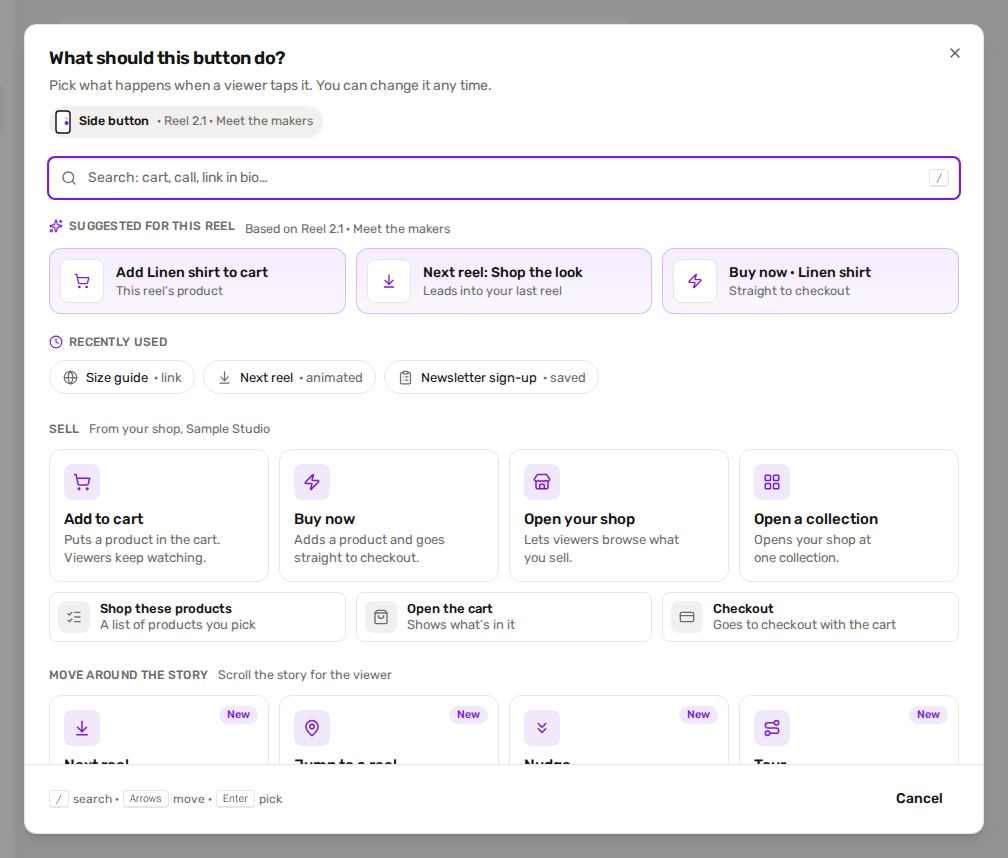
- In the button's settings, open Action and choose Choose what it does. The When tapped line tells you the result in one sentence.
- Change the words, colours and position in the same settings. Use Timing to make it appear partway through the reel.
Changes save to your draft as you go. Viewers see them after you publish.
What a button can do
Sell
- Add to cart
- Buy now
- Open your shop
- Open a collection
- Shop these products
- Open the cart
- Checkout
Move around the story
- Next reel
- Jump to a reel
- Nudge
- Tour
Get in touch
- Form
- Call
Go somewhere
- Website link
- Link page
Using the same destination twice
You can reuse a destination you've already made: in the picker, choose One you’ve made. If it's used somewhere else and you change it, Webstory asks whether the change is for Only this button or Everywhere it’s used.
Good to know
- Buttons follow your brand's colours and corners unless you set your own.
- If a product isn't for sale, its button is left out of the published story. The dashboard tells you which buttons and where.
- Checks in the Reel Editor warns you when a button is too small to tap comfortably, or sits under the caption, the side buttons or other controls.
- The story's Buttons tab lists What your buttons do across the whole story.
Using an AI agent
An agent can see which buttons people tap most on a story with get_story_stats.
An agent that can read your stories sees a reel's buttons and what each one does with list_reel_elements. With permission to change drafts, it can also:
- add a button to a reel, or change one's words, action, place or timing, with
set_button. It can give the reel's on-page button new words and a new action instead of adding another; - remove a button with
remove_button; - set the story's side buttons with
set_side_button.
A button an agent adds follows your brand's colours and corners. Agents use the same actions as the picker, with three limits: no link pages, only a form the story already has (a new form collects personal data), and no changes to buttons the team locked or to the ones on every reel. Their changes go to your draft, and every outside link, email address or phone number they add is shown to you before the story goes live: see Publishing.