
Stories
A story is one Webstory website. Create one, find your way around it, set its address, and see whether it's live.
A story is one website: a set of reels people swipe through on their phone. Each story has its own address, its own buttons and its own numbers.
Create a story
- Open Stories in the sidebar and choose New story.
- Give it a Name and a Web address. The address ends in
.webstory.app. - Choose Who can find it: Public or Private.
- Start from a Blank story, or Duplicate a story you already have.
- Choose Create story. If you start blank and your other stories have buttons, the wizard first offers to bring some of them along.
Find your way around a story
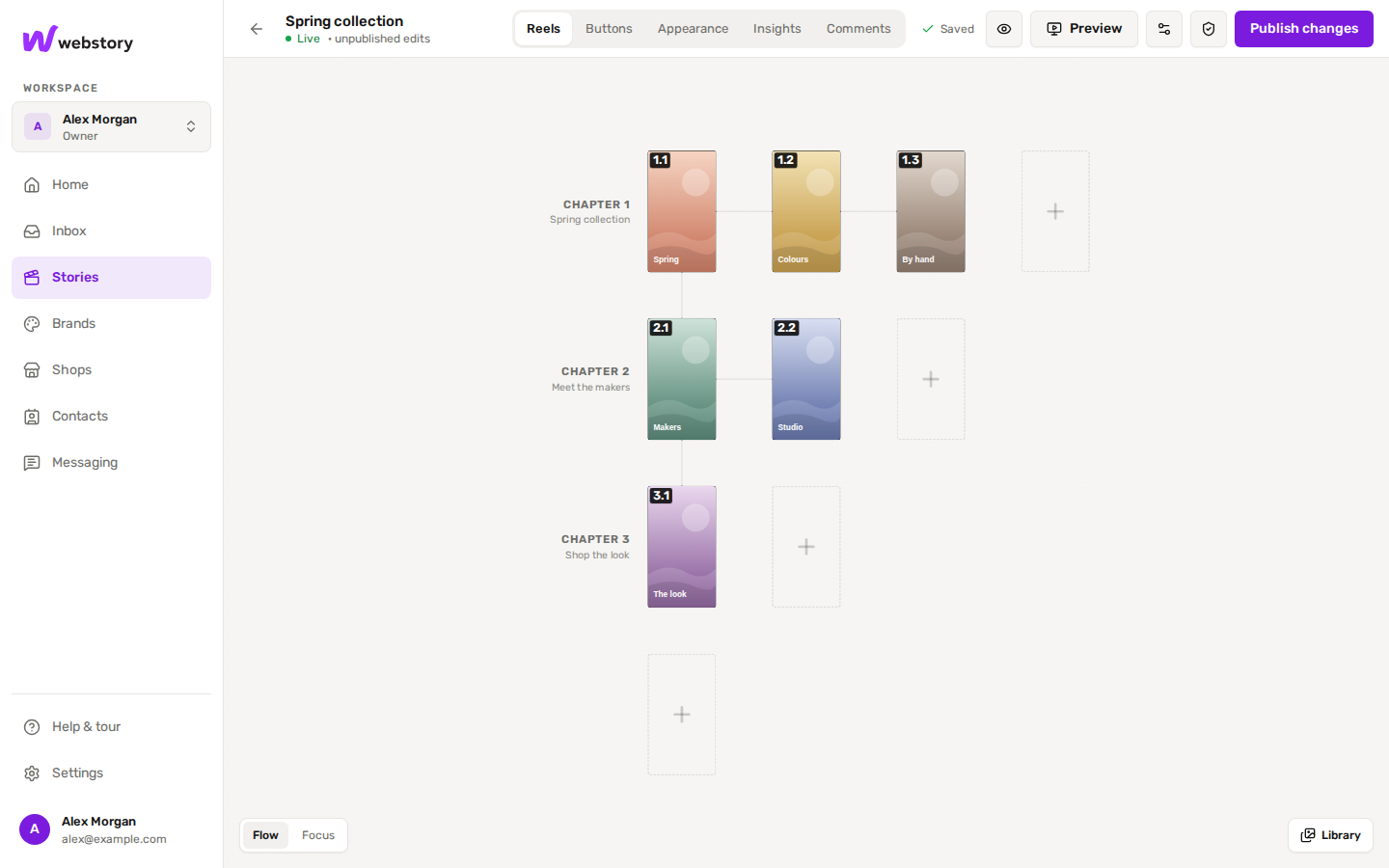
A story has five tabs:
- Reels: the story map, where you add and arrange reels. It has two views: Flow shows the whole story, and Focus shows one reel at a time. See Chapters and Reels.
- Buttons: what your buttons do and where they appear. See Buttons.
- Appearance: how the story looks and which way people swipe.
- Insights: how people move through it. See Insights.
- Comments: what viewers say, when comments are on.
Live, draft and offline
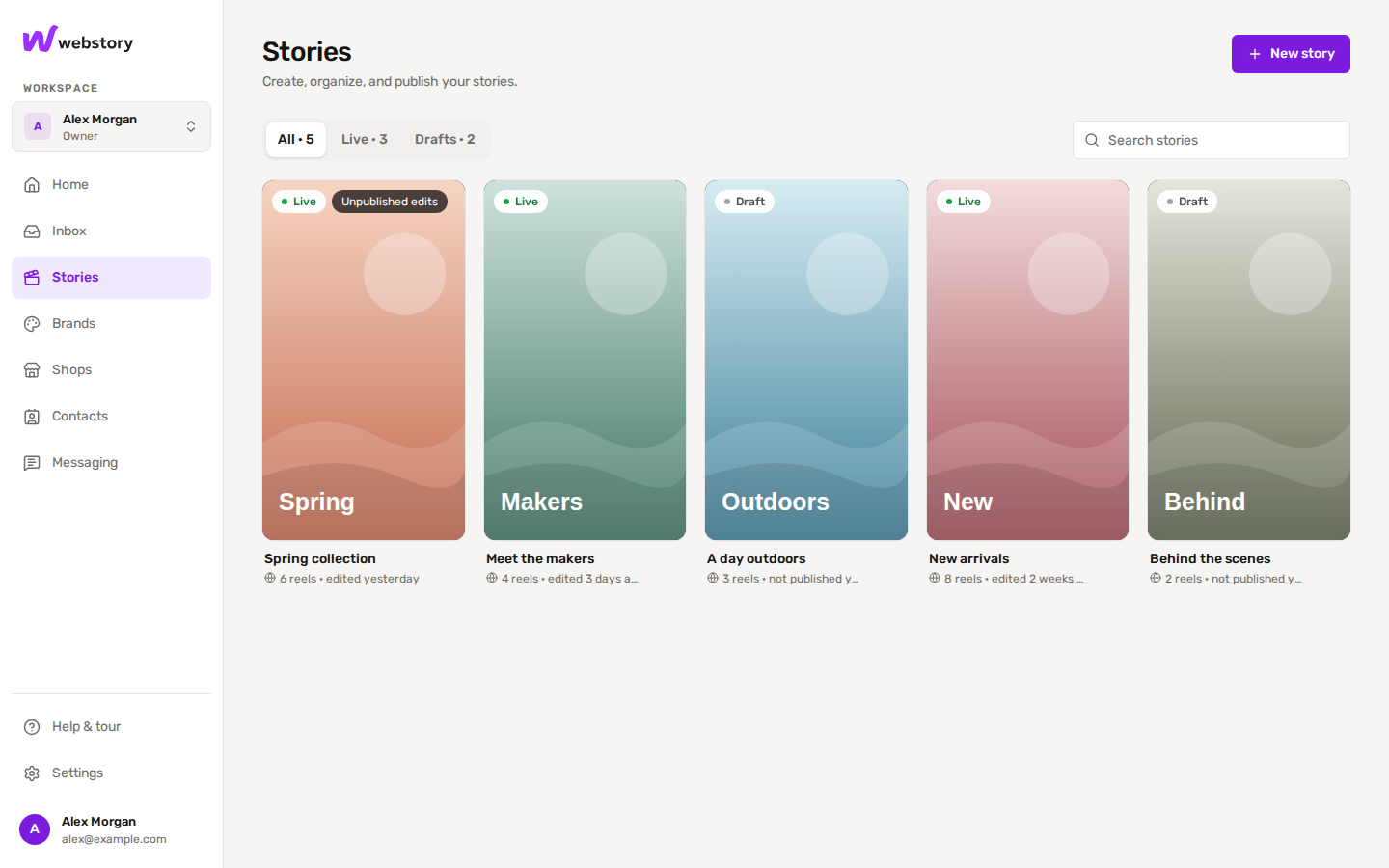
The Stories page shows each story as Live or Draft, and filters by All, Live or Drafts.
- Draft: not live. A story you took offline is listed as a draft too; its own top bar says Offline.
- Live: published at its address.
- Unpublished edits: it's live, and you've changed the draft since. Viewers still see the last published version.
See Publishing.
Address and domain
Open the story's settings with the gear in its top bar.
- Name and address: change the Story address and choose Save address. Your story lives at
<address>.webstory.app. - Custom domain: connect your own domain under Domain, then Connect. Available on Studio and above.
Before you publish
Check story in the story's top bar opens Story checks: every reel, checked on a range of phones, with anything that may not work for viewers. Warnings never stop you publishing.
Using an AI agent
An agent can list your stories with list_stories and read one, chapter by chapter, with get_story. It sees the same stories you do in the connected workspace.
With permission to change drafts, an agent can make a new draft story from photos and videos in your Library with create_story: one reel per file, each its own chapter, with your default brand unless it picks another from list_brands. update_story changes a story's name or brand, nothing else: its address, domain and settings stay yours to change. Nothing an agent does goes live: see Changes by agents, and Undo.